
Phoenix Ad Blocker Help Center
Find answers to common questions on how to use the extension or submit a ticket for reporting bugs or any question.
How do I install the Phoenix extension?
To install the free ad blocking extension in your Chrome browser, visit the homepage in your Chrome browser and click on Download for Chrome - It's free or get it from the Chrome Web Store. Note: currently available only in Chrome.
How do I pin the Phoenix extension to the toolbar?
Click the puzzle piece icon (extensions) in your toolbar. Then click the pin icon next to Phoenix in the extensions list
How do I open the popup menu of the Phoenix extension?
You can open the popup menu by clicking on the Phoenix toolbar icon. On the popup menu you will find the most important information and options available to you.
How do I open the options page of the Phoenix extension?
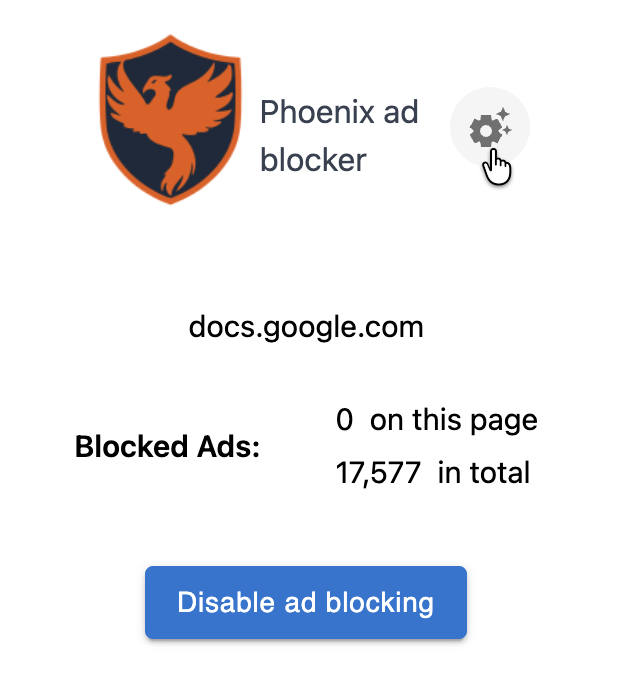
You can visit the options page by clicking on the Phoenix toolbar icon and then clicking on the gear icon. Or you can right-click on the toolbar icon and select Options.
How do I deactivate the Phoenix extension temporarily?
By deactivating the extension you still have it installed and appearing in your chrome://extensions/ dashboard, but won't be running any functionalities. You can deactivate the extension by visiting chrome://extensions/ and toggling the On/Off knob. To reactivate it, just toggle the knob again.
How do I pause ad blocking?
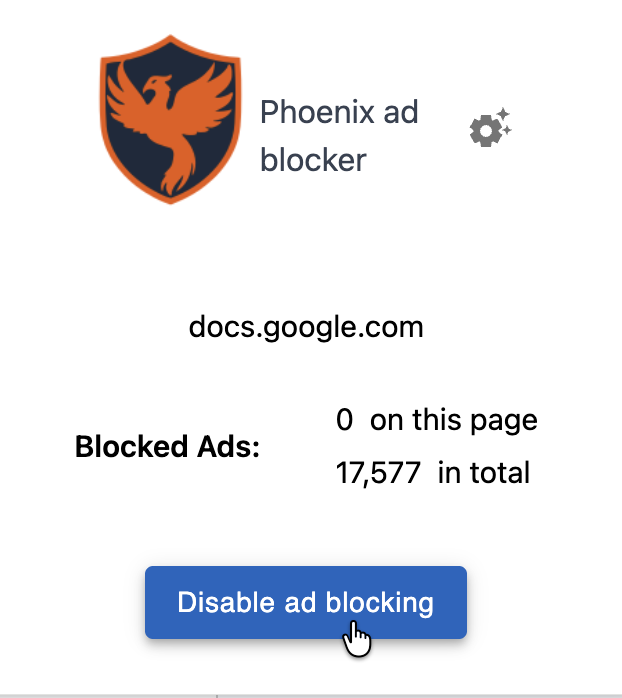
You can temporarily disable the ad blocking functionalities by clicking on the Phoenix toolbar icon in your browser and then click Disable ad blocking. To resume ad blocking reopen the popup menu by clicking on the toolbar icon and click Resume ad blocking.

How do I uninstall the Phoenix extension in Chrome?
Right-click (Ctrl + click on Mac) on the Phoenix toolbar icon and select Remove from Chrome. Then click Remove again. Or go to chrome://extensions/, find Phoenix in the list and click Remove. When asked, click again on Remove.
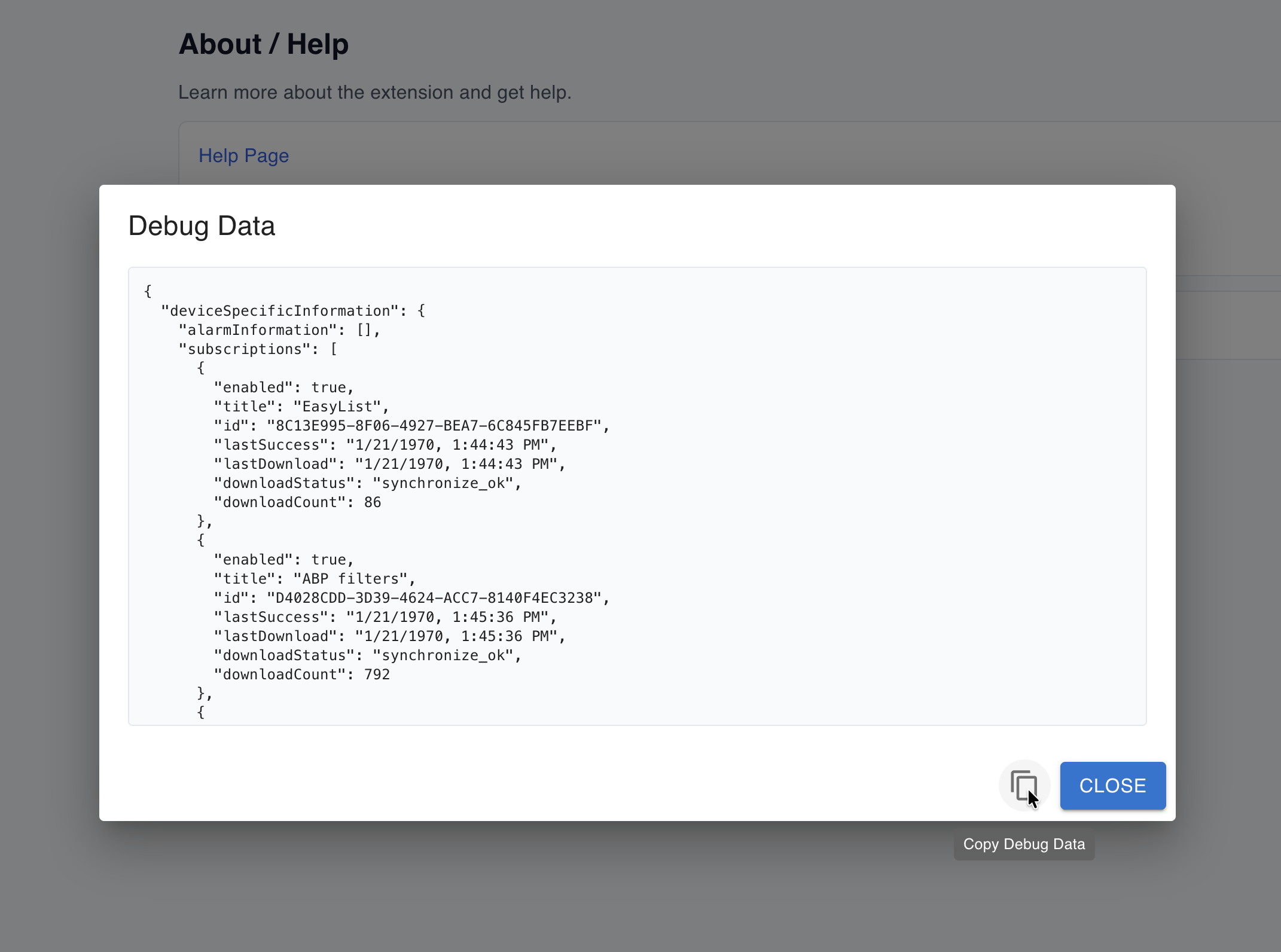
How do I get the extension's debug data?
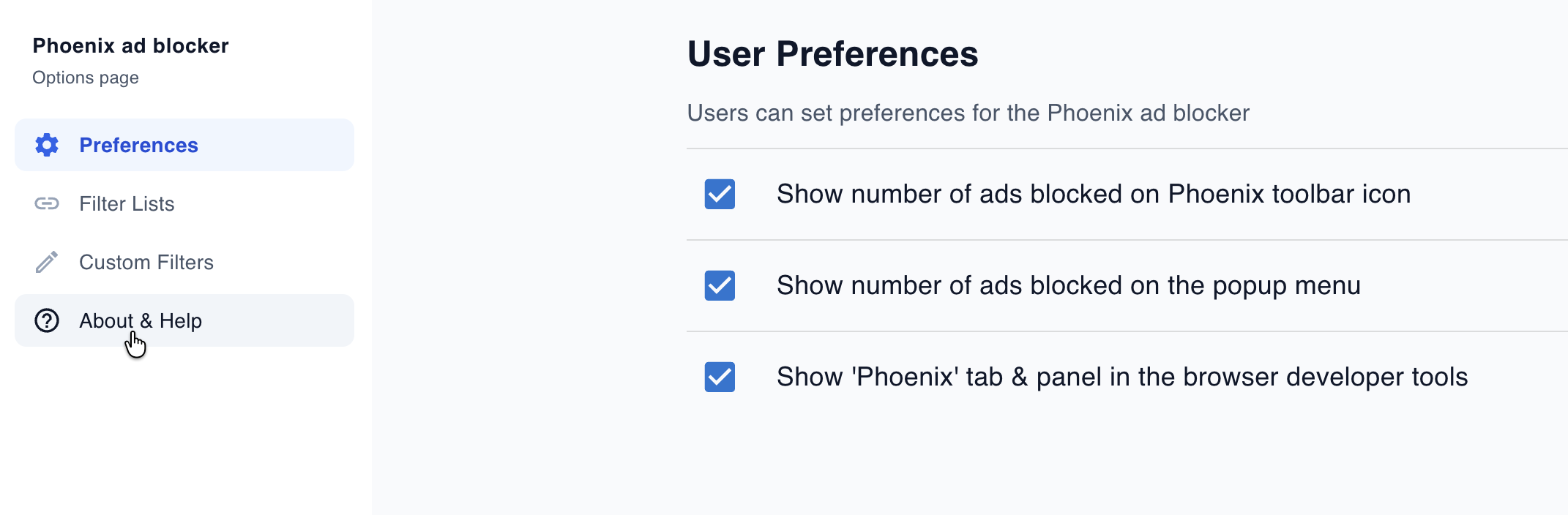
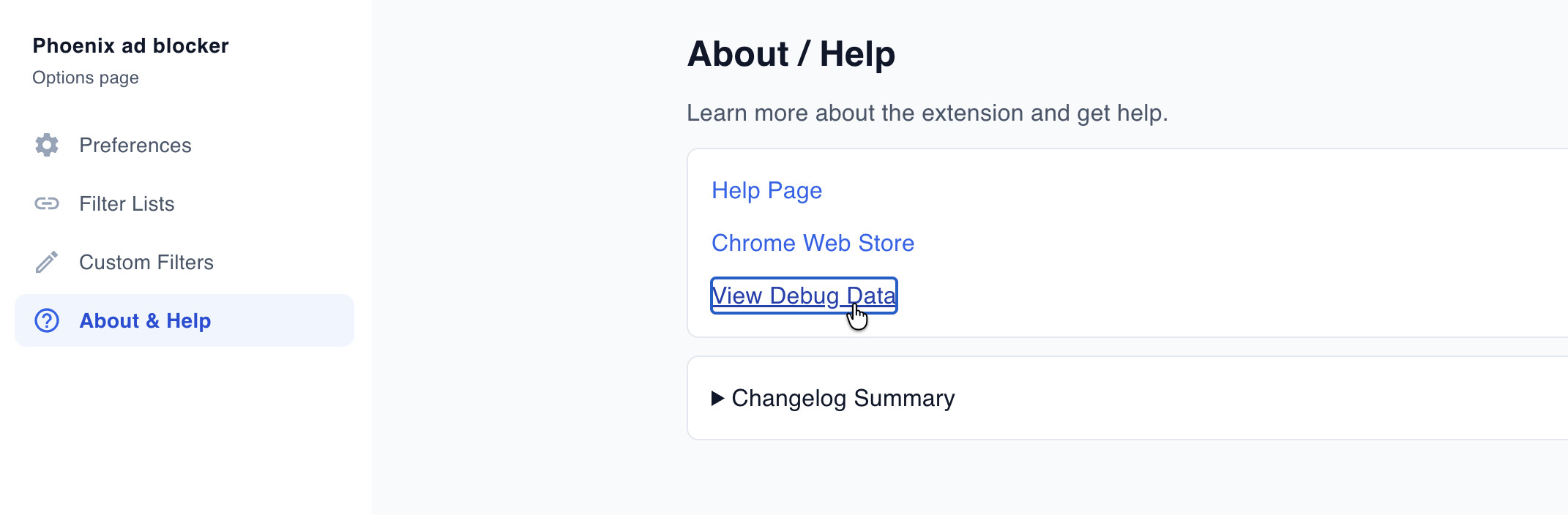
You can get debug info by visiting the Options page of the extension (see 'How to open the options page'), then click on the sidebar menu item About & Help and then click on the hyperlink View Debug Data. Please copy-and-paste the debug info when reporting a bug or asking for help.
How do I submit a ticket?
You can report a bug by visiting the Phoenix Ad Blocker support page, clicking on Submit a ticket and filling up the form. Note: it would be great if in the body you could attach the extension debug info (see 'How to get debug info').
How can I help improve the extension?
You can help Phoenix to improve by spreading the word (we don't pay for marketing), by reporting bugs and sharing ideas and by donating. Donation could guarantee this product remaining the priority for a handful of us developers. See how to submit a ticket or visit the donation page.